This is specific to macOS… but this one weird trick is making your right-side ⌘ Command key momentarily turn your i j k l keys into ↑ ← ↓ →.
It’s like a fancy navigation layer from some convoluted custom keyboard setup, but without the custom keyboard.
I’ve gotten so used to my not-shitty desktop keyboard setup that I absolutely must have this modification on any laptop I use, or I will pout and refuse to get any work done.
This is all made possible by a cool lil application called Karabiner Elements.
But why?
I find writing is as much about navigating text as it is about typing new characters.
So for me, making it easier to move around documents and text fields is one way to make writing on my computer a lot easier.
The benefits of having a keyboard-level modifier include:
- 🧐 No more leaving the home row to bumble around with the arrow keys at the bottom right of your keyboard. My goodness, how pedestrian that seems to me now!
- 🌍 Works across all applications. Almost any text field you can type into is fair game.
- 💘 It keeps the nice inverted-T-shaped arrow key layout that I for one find more intuitive than vim’s “home row only” purism.
- 🙈 You don’t have to learn vim. For me, this means I can pretend I totally don’t care about my failure to learn vim, because I have found a better way that definitely, for sure, no question about it, replicates anything and everything vim might have to offer me.
I’m particularly happy with this setup because it combines really nicely with the underrated macOS system default of alt + ← → jumping word-to-word and command + ← → jumping to the start and end of lines1, and of course with text selection using the Shift key.
Again, this works in nearly any text field in any application.
Hopefully you find this weird little setup as helpful as I have! Hopefully you do not have to compulsively set this up on every new computer you get, but hey, that may be the curse that comes with the blessing of a better world. I’m sorry, and you’re welcome.
Install Karabiner Elements
Follow the instructions over on Karabiner Elements. There’s a bunch of permissions stuff. If you’re worried about privacy, which you probably should be, since all your keystrokes go through Karabiner, you should read Karabiner’s Privacy and Security pages.
Add your complex modification
Mapping right ⌘ Command to momentarily turn your i j k l keys into the ↑ ← ↓ → arrow keys constitutes what Karabiner calls a “complex modification”.
Once you’ve finished following the installation steps, open Karabiner’s preference pane if it isn’t open already, and head over to Complex Modifications. The pane will look empty, this is okay!
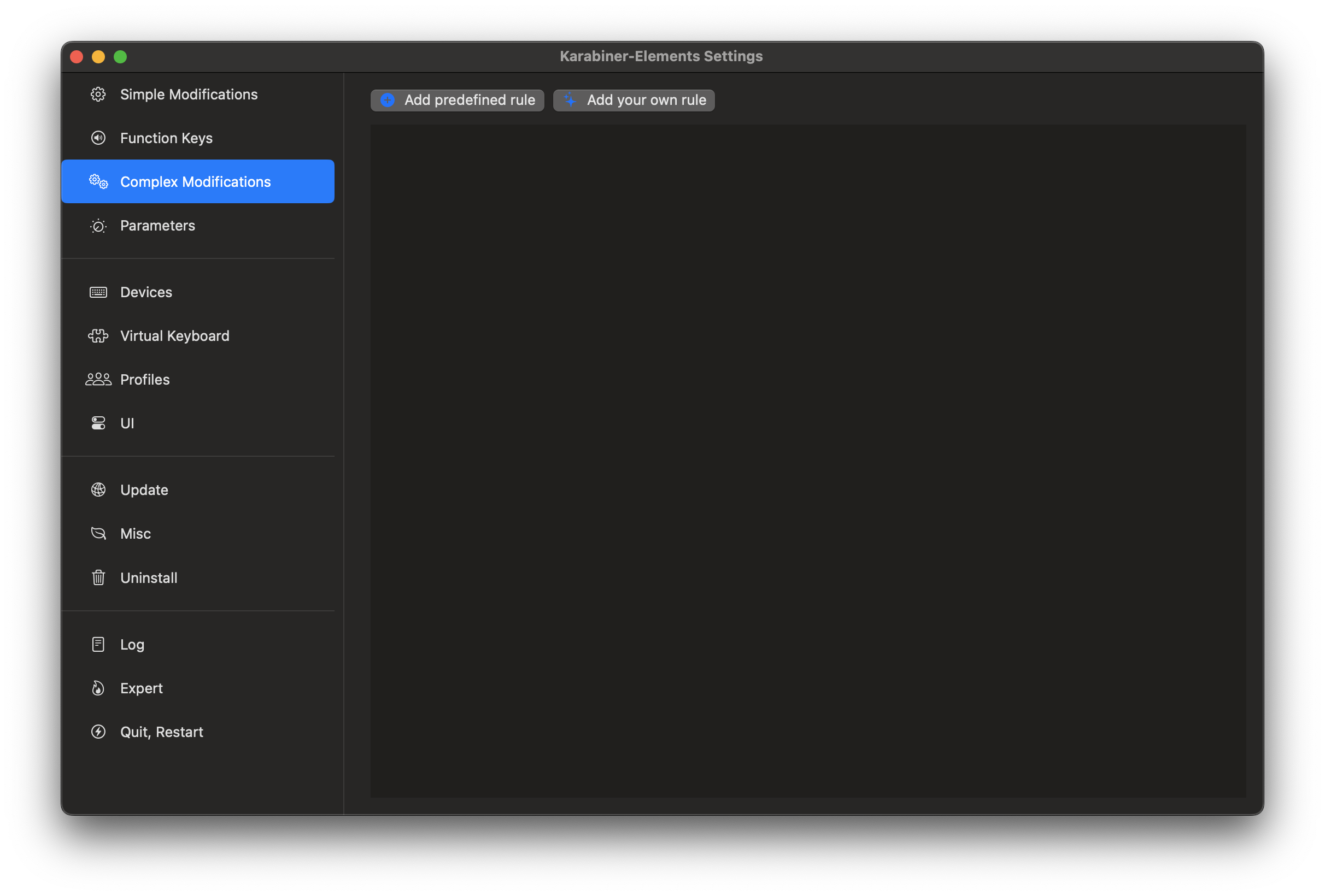
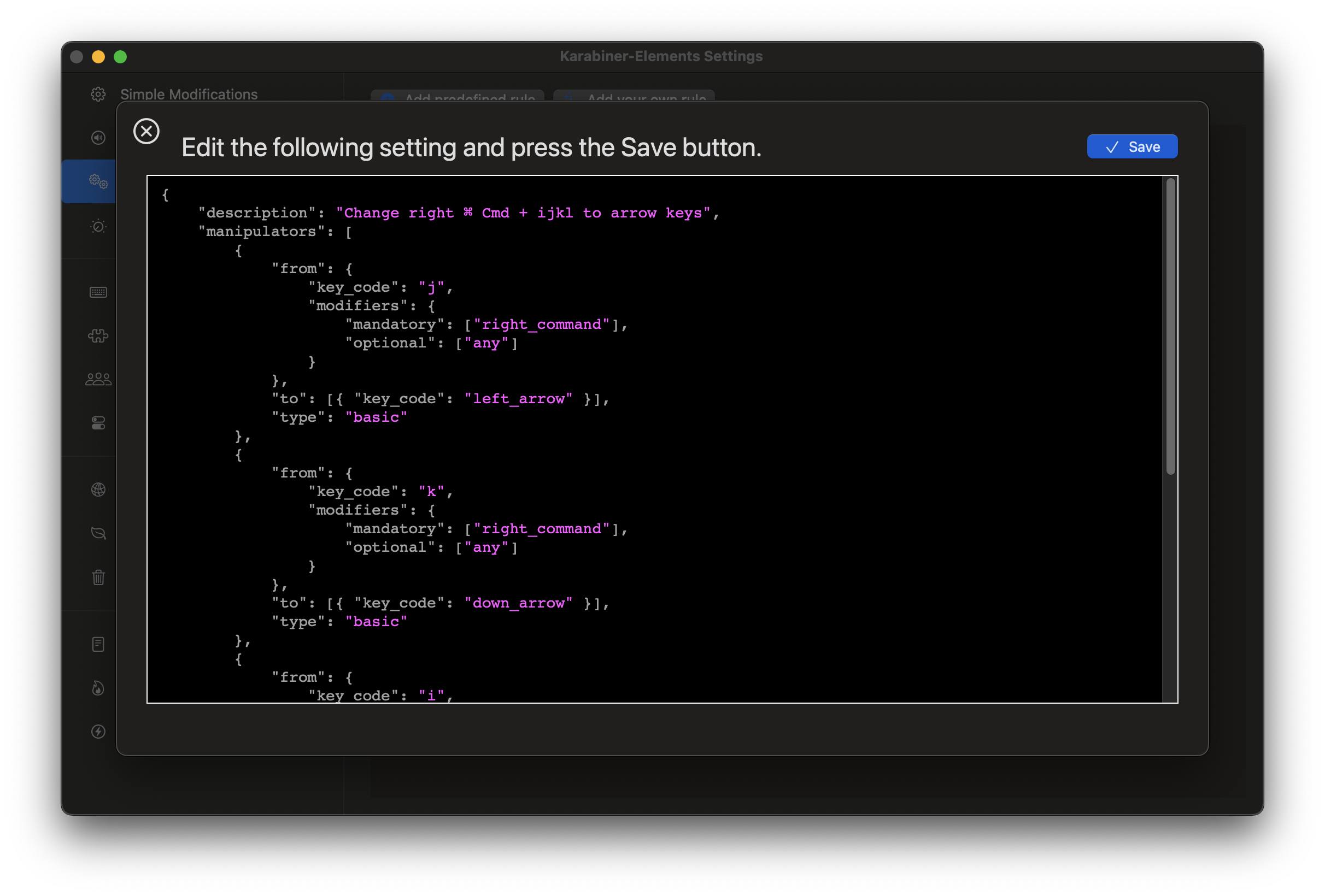
Select Add your own rule. You should see a big ol’ input field show up, with some placeholder JSON. The JSON linked below is what I use to map the right ⌘ Cmd + ijkl to arrow keys. I’ve also included it in a code block at the bottom of this page in case that’s easier to copy.
karabiner-complex-modification-map-right-cmd-ijkl-to-arrow-keys.json
Paste it into the field, and hit Save.
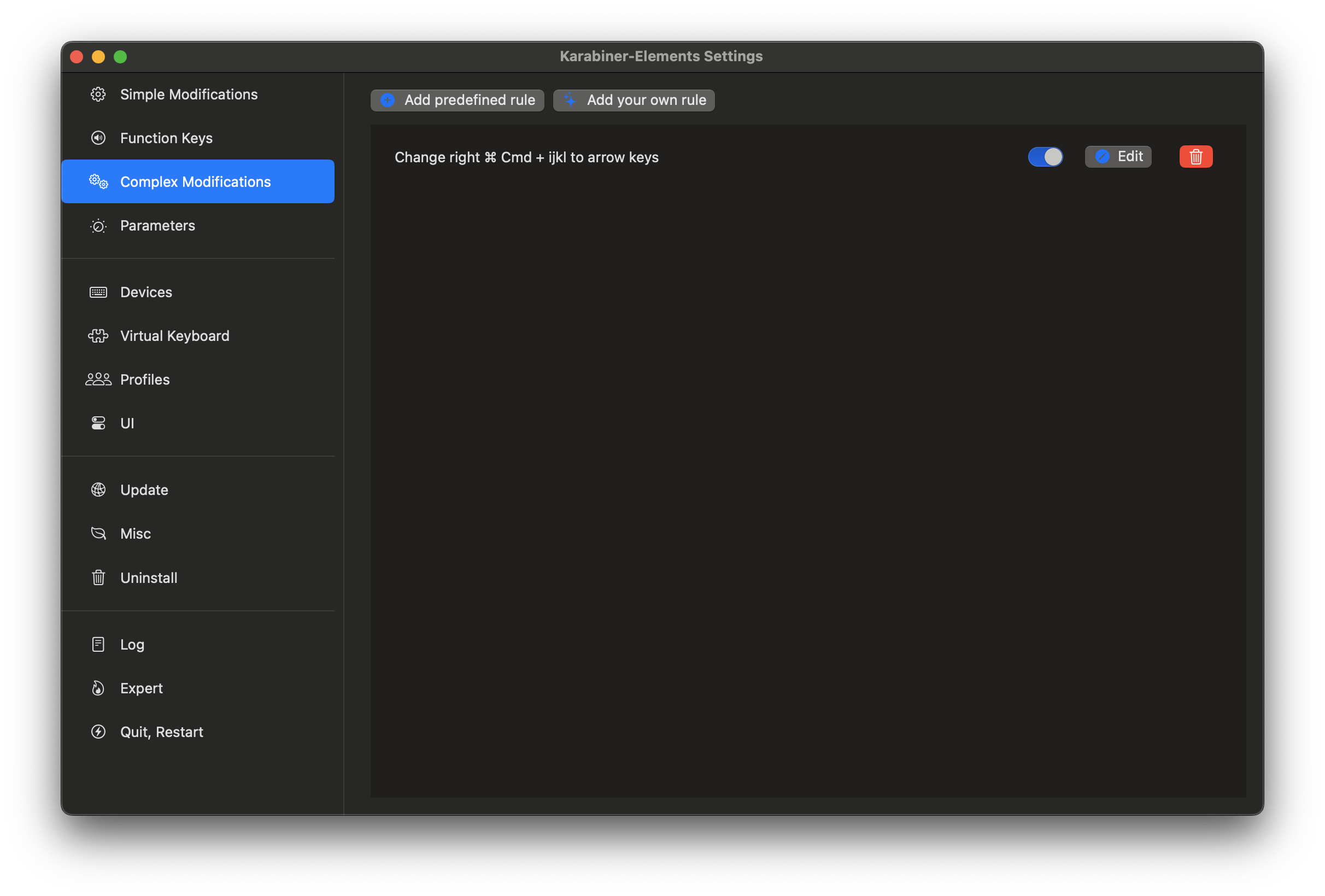
Then make sure the custom modification you’ve added is enabled with the little boolean input (which it should be by default), and you’ll be good to go. Try it out in your favourite text editor!
Modification JSON for right command + ijkl to arrow keys
{
	"description": "Change right_command + i-j-k-l to arrow keys",
	"manipulators": [
		{
			"type": "basic",
			"from": {
				"key_code": "j",
				"modifiers": {
					"mandatory": ["right_command"],
					"optional": ["any"]
				}
			},
			"to": [
				{
					"key_code": "left_arrow"
				}
			]
		},
		{
			"type": "basic",
			"from": {
				"key_code": "k",
				"modifiers": {
					"mandatory": ["right_command"],
					"optional": ["any"]
				}
			},
			"to": [
				{
					"key_code": "down_arrow"
				}
			]
		},
		{
			"type": "basic",
			"from": {
				"key_code": "i",
				"modifiers": {
					"mandatory": ["right_command"],
					"optional": ["any"]
				}
			},
			"to": [
				{
					"key_code": "up_arrow"
				}
			]
		},
		{
			"type": "basic",
			"from": {
				"key_code": "l",
				"modifiers": {
					"mandatory": ["right_command"],
					"optional": ["any"]
				}
			},
			"to": [
				{
					"key_code": "right_arrow"
				}
			]
		}
	]
}
Bonus round use the right option key for whatever you want
I’ve always wondered why mac keyboards have an extra Option and Command key on the right side. I’ve decided it’s because they want us to do weird stuff with those keys.
I’ve set the right option key to trigger the shortcut Hyper + M, cause that’s what I use on my custom keyboard to Show Desktop. This weird combo avoids conflict with any possible shortcuts in any app.
There’s probably a better way to do this… but, whatever.
{
	"description": "Change right_option to Hyper + M",
	"manipulators": [
		{
			"type": "basic",
			"from": {
				"key_code": "right_option"
			},
			"to": [
				{
					"key_code": "m",
					"modifiers": ["shift", "control", "option", "command"]
				}
			]
		}
	]
}
Footnotes
-
If this link breaks, as Apple documentation pages seem to do more often that I’d like, it’s a page called “Mac keyboard shortcuts” that mentions some “Move the insertion point” shortcuts involving “Option” and “Command”. Hopefully they’re still true, it’s one of my favourite things about macOS! ↩